
Create Shortcut
Android
Android Google Chrome
1. If using Google Chrome browser then click the 3 dots in the upper right hand corner of the screen.
.png)
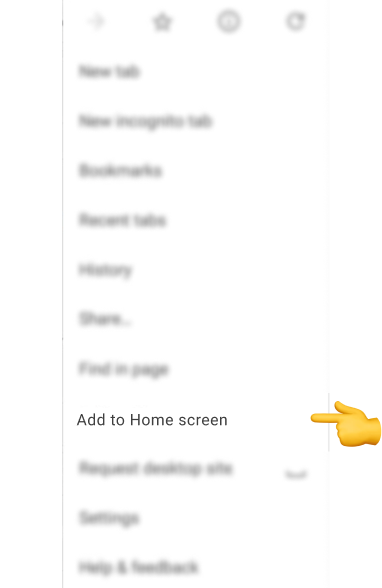
2. In the newly opened menu, scroll down the menu until you find ‘Add to Home Screen’ and then tap it to select this option.
3. A new box will now appear prompting you to confirm this choice by clicking the ‘Add’ button.

4. Congratulations, you can now access Kingmaker via the icon on your home screen!
Android Samsung Internet
1. If using Samsung Internet browser then click the hamburger icon at the bottom right corner of the screen.

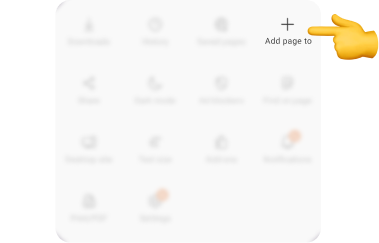
2. In the newly opened menu press the ‘Add Page To’ button in the top right corner.
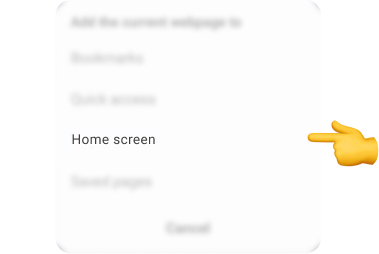
3. A new box will now appear prompting you to confirm where you would like to add the page to, select the ‘Home Screen’ option by pressing on it.
4. Congratulations, you can now access Kingmaker via the icon on your home screen!
IOS
1. Tap the icon featuring a right-pointing arrow coming out of a box to open a drop-down menu.
.png)
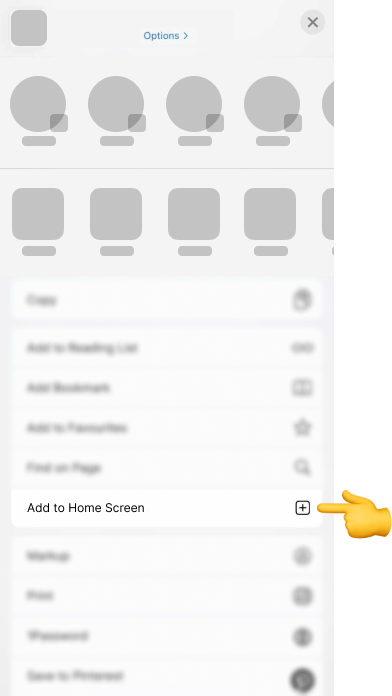
2. In opened menu scroll down, find the button Add to Home Screen and tap.
3. You’ll be able to enter a name for the shortcut and then the browser will add it to your home screen.